3D printing file checklist
A file that is ready to print gets you a clearer quote and fewer questions. Run through these checks before you upload to our online quote. Each one matches what the quote page shows you.
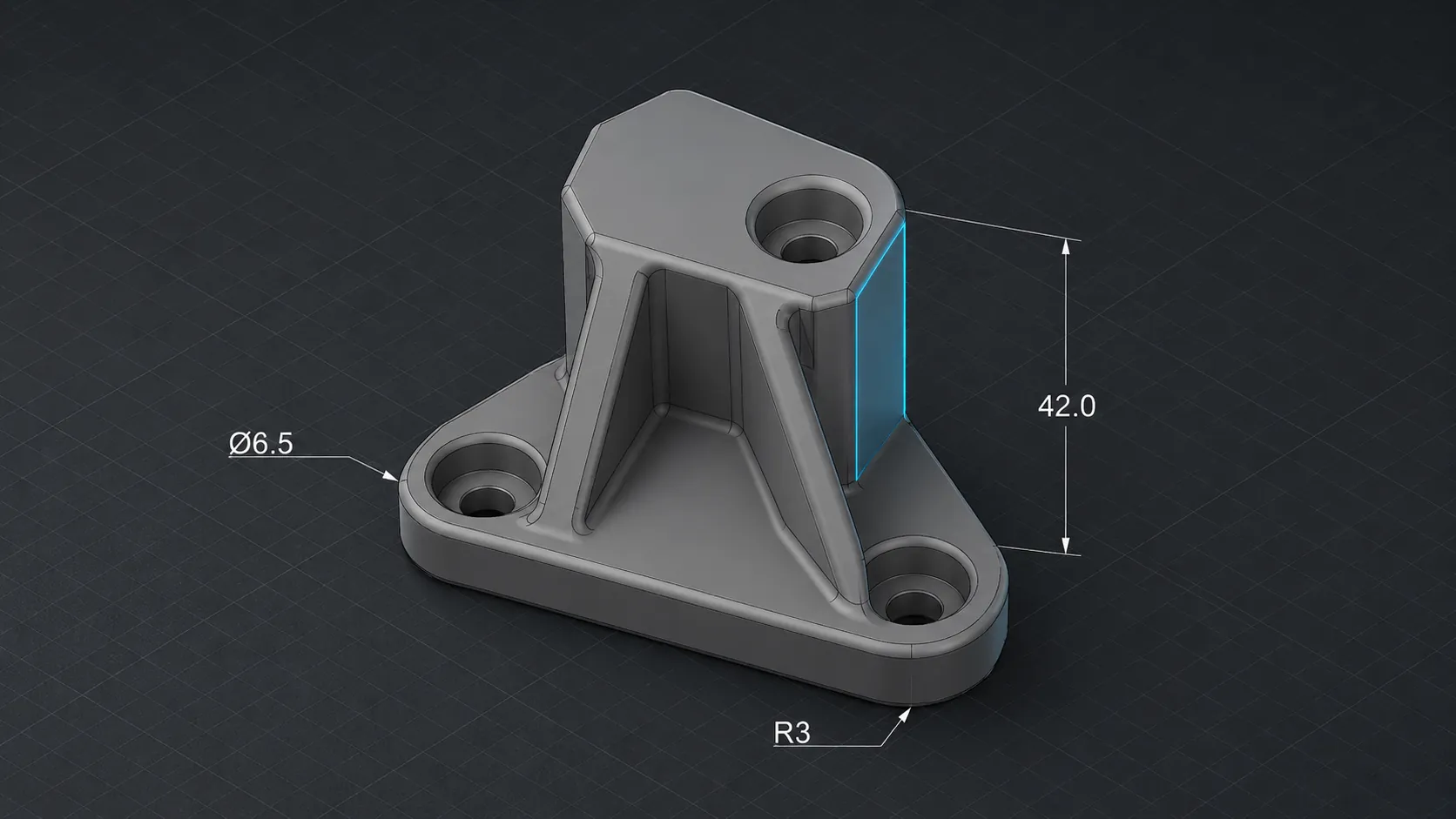
One part, one file, one clear size
Three things are worth checking before you upload: the file format, the units, and whether the part fits the printer. Each takes a minute, and the quote page shows what it found as soon as you upload.
Format
STL or 3MF gives the cleanest read. OBJ, STEP and AMF are accepted too.
Units and size
Confirm millimetres, then check the part fits 256 x 256 x 256 mm.
Settings
Choose layer height, material, colour and finish, then watch the quote update.
Seven checks before you upload
- Export a printable format. The quote page accepts STL, OBJ, STEP, 3MF and AMF files up to 100 MB each. STL or 3MF is recommended. A 3MF can also carry plate and multi-colour data when your software includes it.
- Keep the model clean. Export the finished part as a solid model and keep separate parts cleanly separated.
- Check the units. The quote page reads your file as millimetres. If the part shows up tiny or huge, switch the model units to cm or inches, or type the longest side you want. The readout under the controls shows what it is using.
- Check it fits. Our largest single print is 256 x 256 x 256 mm. The page can scale a part to fit the plate. If the real part is bigger, say so in your order notes and we can look at splitting it and joining it after printing.
- Leave supports and orientation to us. You do not need to add supports to your file. We assess orientation, supports and plate strategy in the studio. If one face matters, such as a mating surface or a visible side, mention it in your notes.
- Pick a layer height. Fine (0.1 mm) gives the highest detail, Standard (0.2 mm) is the recommended setting, and Draft (0.3 mm) suits fast, functional parts.
- Choose material, colour and finish. Pick from PLA, PETG, PETG-CF, ABS, TPU and ASA, then a raw print or a sanded, primed or basic painted finish. Screen colours are a guide, so the real filament can look a little different.
What each setting is for
Layer height
Finer layers show more detail and take longer to print. Draft is quicker and suits parts where looks matter less than getting them in your hands.
Infill
The quote page sets a sensible default for each material. It suggests going above 40% only for structural parts or fixtures, as it can add cost faster than it adds useful strength.
Material
PLA suits models and display parts. PETG handles everyday use. PETG-CF is stiffer than plain PETG. ABS and ASA suit engineering parts, and TPU is flexible. If you are unsure, tell us about the part in your notes and we will suggest one.
Finish
Choose raw, sanded, primed or basic painted on the quote page. For a sealed print, or vapour smoothing on ABS and ASA parts, mention it in your order notes.
We choose settings to suit your part, but we do not certify parts for any particular use. If a part has to meet a standard or a load, please test it yourself in its real conditions.
What to put in your order notes
The notes box on the quote page is the place for anything the file cannot say: the finish you want, your deadline, an NDA request, or the face of the part that matters most. If you need your parts sooner, the rush option adds 35% to the quote. Prices are GST exclusive, the minimum order is $18 + GST, and quotes are valid for 7 days. The quote tool is the place to see your number.
3D printing file FAQs
Which file format is best for 3D printing?
STL or 3MF. Our quote page also accepts OBJ, STEP and AMF files up to 100 MB each, but STL and 3MF give the cleanest geometry read.
How do I check my file is the right size?
The quote page reads your file as millimetres by default and shows the size it found. If the part looks tiny or huge, switch the model units to cm or inches, or set the longest side yourself.
What is the biggest part you can print?
Our build volume is 256 x 256 x 256 mm. A larger part can still be reviewed, but it may need to be split or re-oriented. Mention it in your order notes.
Do I need to add supports to my file?
No. Supports, orientation and plate strategy are assessed in the studio, so a file that needs print prep is not quoted as if it can print unsupported.
Which layer height should I choose?
The quote page offers Fine (0.1 mm) for the highest detail, Standard (0.2 mm), which is recommended, and Draft (0.3 mm) for fast, functional parts.
Can I change my mind about material or finish after I upload?
Yes. Every change on the quote page updates the quote straight away, and quotes are valid for 7 days. You can also leave a note with your order.
Can you sign an NDA before you quote my part?
If you need an NDA signed before we quote, mention it in the order notes on the quote page and we will sort it out first.
Upload your file and see your quote
No account needed. Filament & Form is the sister studio to Fetch & Form, and you can also read about our 3D printing service in Brisbane. We also have pages on rapid prototyping, short run 3D printing and custom 3D printed parts, plus our 3D printing materials guide.